Aside from the Kindle, the hubby also gave me a 500GB hard drive replacement for my laptop on my birthday!
(No chocolates and flowers for this geek girl. I spit on them, haha! I like jewelry tho. Shiny. Oh, and shoes.)
Believe it or not, I was pretty happy with getting this non-girly gift. I’ve been running on 5gig to 8gig free hd space on my laptop and it’s getting quite frustrating since I couldn’t install any new games and major applications. (I can’t even upgrade my OS since it takes up a lot of space, LOL)
I have to occasionally delete (nuuuuuuuuuuu!) some of my downloaded TV series as my external Western Digital passport is full as well. (10gigs left as of this writing!)
So yeah, a 500gig internal HD upgrade for my laptop rocks! v(^.^)
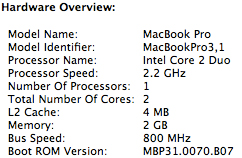
For the record, this is the model of my MacBook Pro.
The Tools
To replace a hard drive in a 15-inch MacBook Pro, you need the following tools:
1. The replacement hard drive. The hubby got a 500gig Seagate Momentus 7200RPM. Definitely much faster than my stock 120gig Fujitsu 5400RPM. He got it for P3,300.
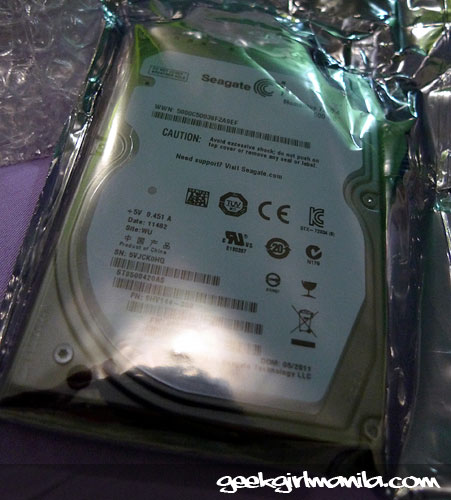
2. A 2.5inch enclosure for the hard drive. So you can transfer your files to the new hard drive. Available in PCeXpress for P400.

3. Pressurized/canned air (P100), a complete set of screw drivers (P180, from CD-R King) and cleaning brush (P150, from Octagon)
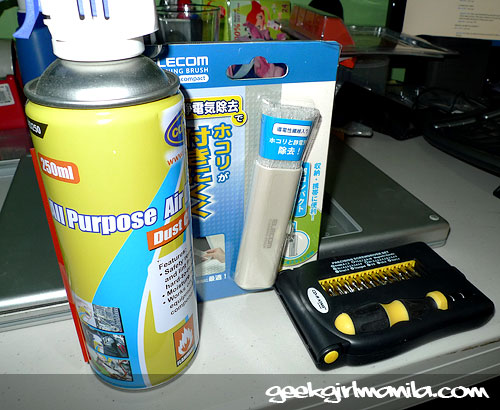
 This one is a STEAL for P180 bucks! Artie looked around for this in True Value and it costed P500 bucks more!
4. Your neighborhood friendly technician. In my case, the husband! 😛 I had dreams of doing it myself, but I would rather have someone to blame (and buy me a new laptop) if I end up breaking things, haha! 😉
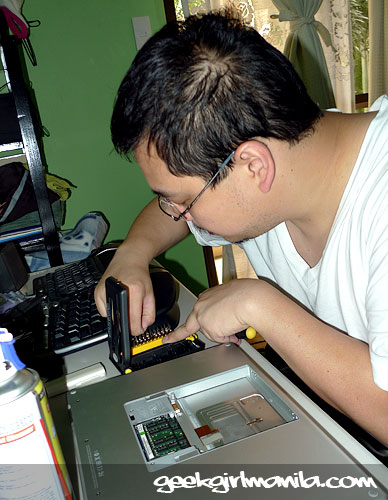 I was constantly threatening him that he HAD to buy me a new iMac if he broke my laptop, haha! 😉 I think he wanted to die when he dropped a screw on the floor 😛
The Steps
1. First, you need to transfer your files to your new hard drive. You have 2 options: back up your important files and do a fresh install of your OS and applications; or, clone your hard drive.
I opted to just clone my hard drive because I was impatient 😛
 We used Carbon Copy Cloner app to clone my HD. It took 3 hours to clone a 120gig hard drive.
If you can wait, it would be nice to have a fresh install of your OS and all your apps so that your system files will be less cluttered.
But then, that’s not really a problem on a Mac, anyway 😉
2. Watch this video and follow the steps! This video is pretty easy to follow.
Since your laptop is already baring its soul, you might as well have the fans cleaned! The hubby cleaned mine using the canned air and now my laptop is running 5C to 10C cooler than usual. (Keep a vacuum cleaner of some sort around as a family of dust bunnies will be flying around when you attempt to clean your fan and your vents, hehe)

 At this point, I retreated with my Kindle, praying to the geek gods that my laptop would start up after the upgrade, hehe.
If in doubt, have your laptop serviced at your nearest Authorized Apple Service Center 🙂

Next to upgrade, my RAM! 😉


Leave a comment