So you have an old, prehistoric TV and you want to stream the movies from your laptop or computer to your TV.
Possible? Yup and here’s how!
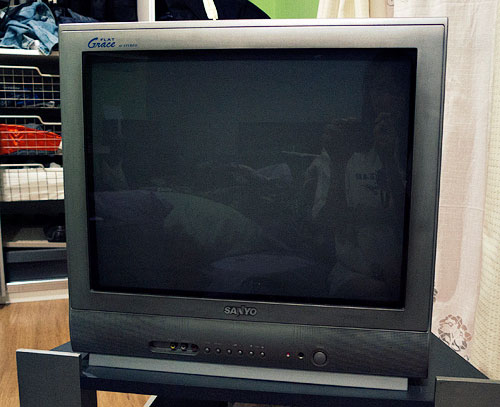
Say ‘hi’ to my dinosaur of a TV that I decided to bring with me to our new condo!
Step 1: First, make sure you have a Wi-Fi Network. This will not work, if you do not have a Wi-Fi Network at home. (I know Wi-Fi at home is a norm, but just making sure!)
Step 2: Get yourself a media player.
There are a lot of media players out there. The husband always recommends the Popcorn Hour Media Player to friends. It’s basically a tiny computer that’s just made for playing media (songs, 1080P videos, etc.) The best part is, you can directly download your torrents into it’s internal HDD (HDD is bought separately).
(I’m not quite sure, though, if the Popcorn Hour Media Player is compatible with old TVs. For the more hard core tech geeks, you can build your own media player.)
If you already have a PS3 hooked to your TV, you can use that as a media player, too!
Personally, I recommend the WDTV Live. It’s a very basic media player that’s really easy to use. If you’re not too particular about ‘features’ and all you want to do is watch the movies and shows saved on your laptop, on your TV, then this is the way to go 🙂 PLUS, it works on old CRT TVs!
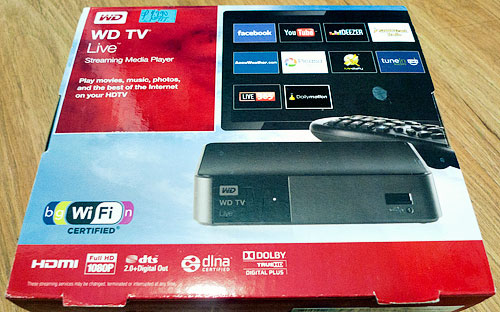
WDTV Live. I bought this for P4,990.00
There are other models of the WD TV Live that comes with a built-in HDD, but this is the most basic one. Can read from a USB, or external HDD, too.

Comes with a remote. Very easy to operate!
Step 3: Download and install the ‘PS3 Media Server’ on your computer. (There are other Media Server apps out there, but I like this one as it is the most simple and least complicated to use.)

The PS3 Media Server is simply an application or software that will allow the media player (or your PS3) access to your computer or laptop via WiFi. Works for both Macs and PCs.
Step 4: Set up your media player and start watching!
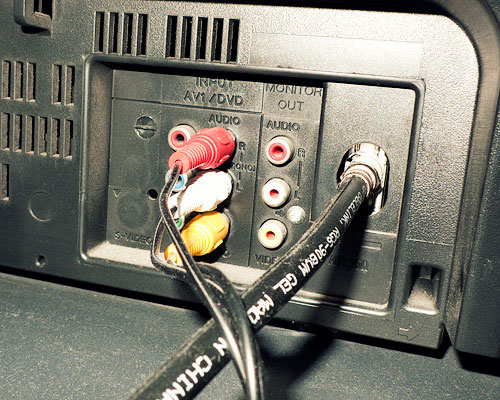
Easy to set-up! Plug in the AV cables (or HDMI, but the you’ll have to buy the HDMI cables separately)
The first time you turn the WDTV Live on, you’ll be asked to update it. It’ll take around 30 minutes, depending on your connection.
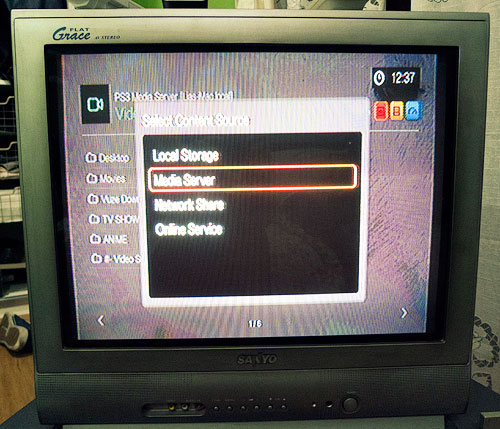
Once everything is up-to date, choose the ‘Content Source’, in this case it’s ‘Media Server’

You should see all the servers, choose the PS3 Media Server [ ]

Then, you’ll see the ‘Shared Folders’. You can set this in the PS3 Media Server application. (Navigation/Share Settings)

And viola! Your shows and movies on your TV! ❤
So there you go! Enjoy your movie nights at home!


Leave a comment